Step 1: Download and install XAMPP on your computer
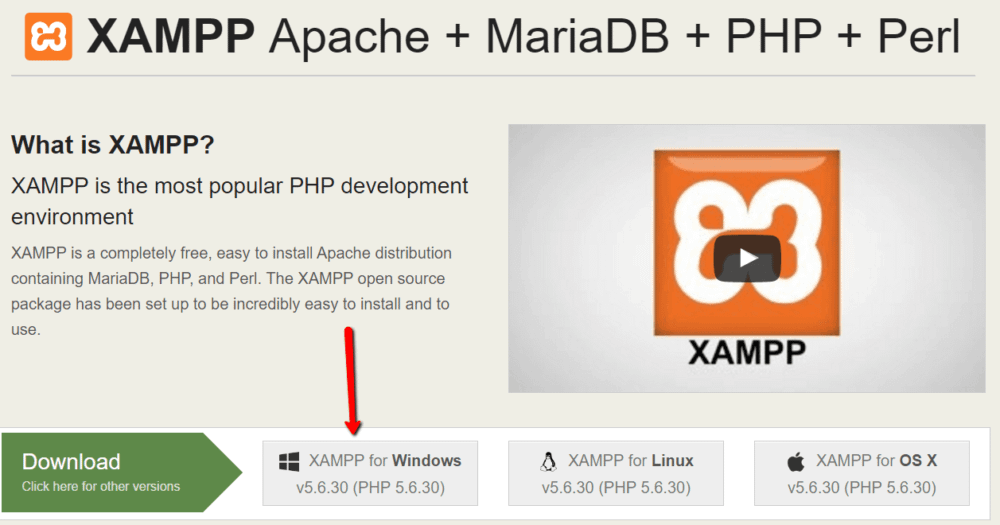
To get started, you need to download and install the XAMPP software. You can download the Windows installer file from Apache Friends. It’s a big file, about 110 MB, so it might take a minute or so depending on your connection:
Once the download finishes, run the file you downloaded to launch the XAMPP installer. If you’re running antivirus software, you might get a warning like this:
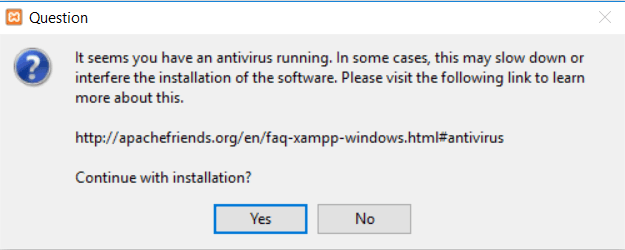
Just click Yes to continue. Depending on your Windows configuration, you might also get a prompt about User Account Control (UAC). Just continue through that prompt as well. Once you get through all of the prompts, you should see the standard installer screen:
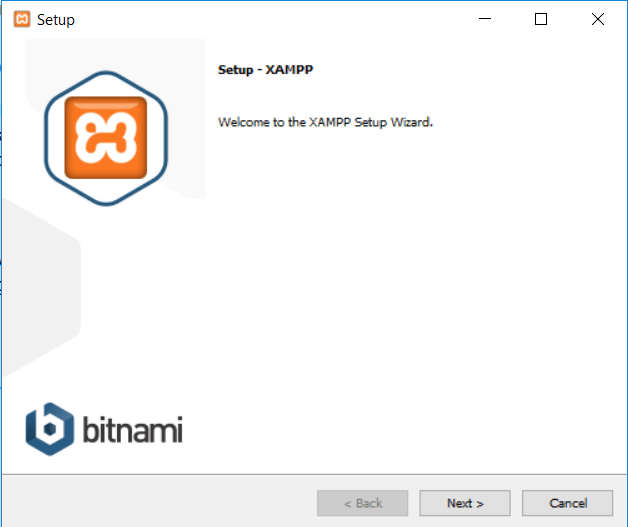
Just click Next to continue.
On the next screen, you can choose which components to install. To install XAMPP and WordPress, you do not need all of the components. In addition to the required components, all you need are:
- MySQL
- PHPMyAdmin
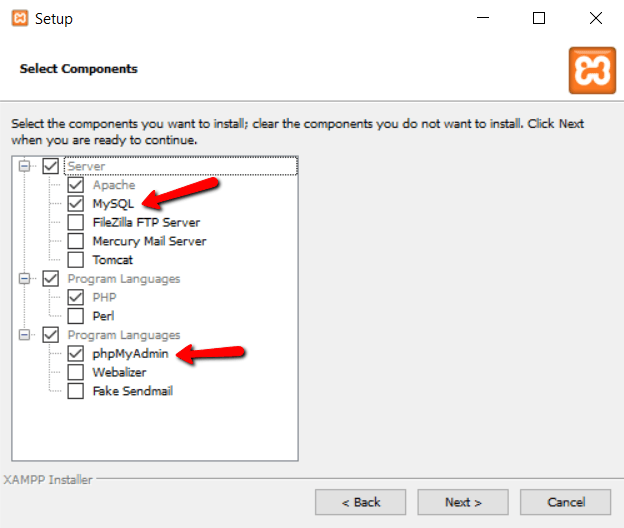
Uncheck everything else and click Next.
You can now select which folder to install XAMPP in. I always leave it as the default:
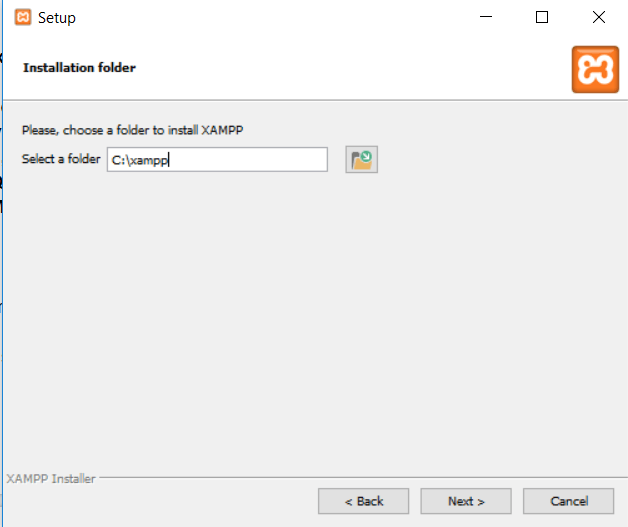
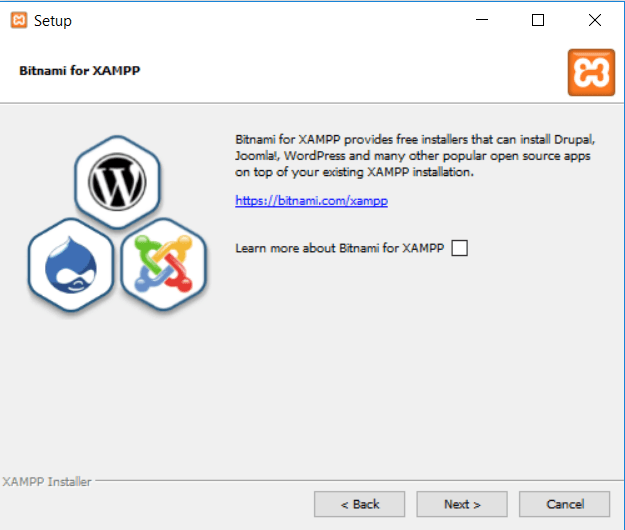
On the next screen, you’ll get a prompt asking you to install Bitnami for XAMPP. You do not need this to install XAMPP and WordPress, so just uncheck the box:
Once you click Next, you’re ready to run the install:
The install process might take a few minutes:
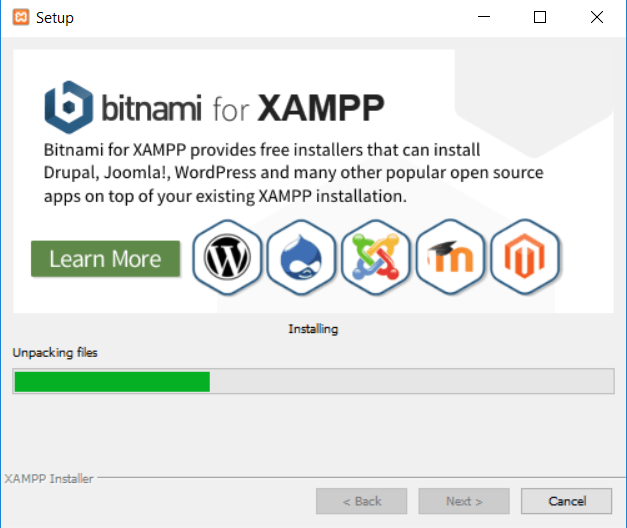
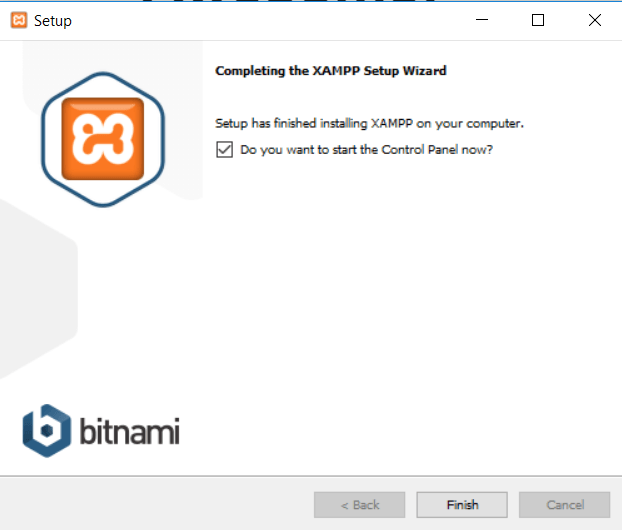
Once it finishes, you can launch the control panel to start working with XAMPP:
Step 2: Start the modules and test your server
To install XAMPP and WordPress properly, you’ll need to run two modules:
- Apache
- MySQL
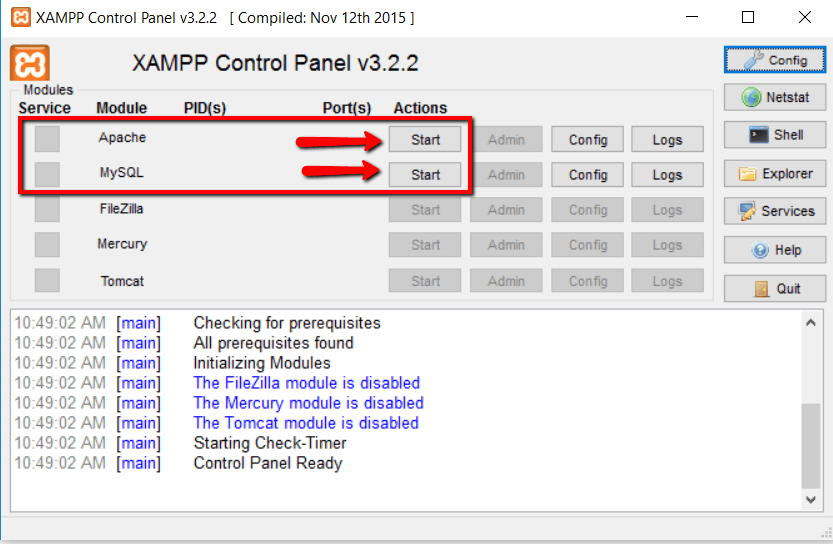
You can start both modules from the XAMPP control panel:
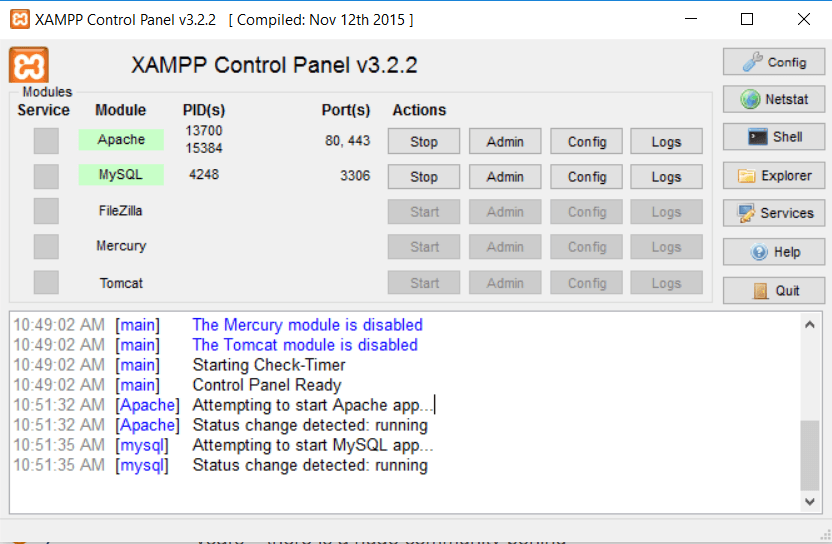
Once you launch them, you should see their status turn to green:
And now you should be able to test that your local server is working by going to
http://localhost/ in your web browser of choice: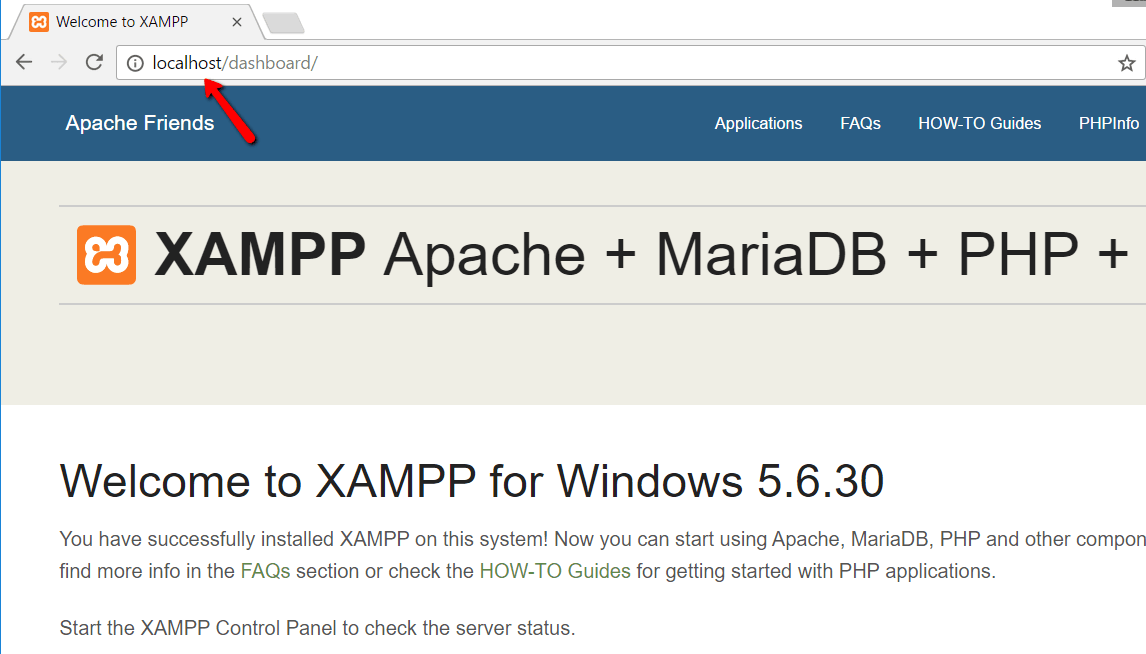
If all went well, you now have a functioning XAMPP server on your Windows PC! But now it’s time to install XAMPP and WordPress. So here’s how to get a WordPress site up and running on XAMPP.

No comments:
Post a Comment